 Gojli
GojliAlternate & Mix PDF Online – Combine and Interleave PDF Pages
What Are Alternates & Mixes and What Do They Do?
Alternate & Mix is an online PDF app that merges two PDF files with each page from a different file in alternating order. The tool does not just put each complete document one after the other; it actually picks pages from each file and weaves them together. For example, it can take page 1 from the first PDF, page 1 from the second PDF, then page 2 from the first PDF, and so on until the end of pp.
Thus, Alternate PDF Pages becomes handy if two similar PDF files need to be merged in a page-wise manner. For instance, there may be pages you scanned face-up and others that you scanned face-down, or perhaps there is a page that has two versions, such as a cover sheet and the actual content.
Alternate & Mix tool to mix PDF files and to combine PDF pages alternately to generate a single organized document without the manual need of moving each page. It is helpful for students, office workers, businesses and anyone working with many PDF documents.
How Do We Train on Alternate & Mix?
This tool takes 2 PDF files that you upload, and it puts the pages in an alternating manner. Instead of combining the first PDF and then overlaying onto it the second, the included PDF Page Mixer weaves pages from both files together.
For example:
PDF 1: Page 1, Page 2, Page 3
PDF 2: Page 1, Page 2, Page 3
We can arrange the final mixed PDF as:
PDF 1 – Page 1
PDF 2 – Page 1
PDF 1 – Page 2
PDF 2 – Page 2
PDF 1 – Page 3
PDF 2 – Page 3
It’s ridiculously simple but will be needed if you want two PDF files mixed without having to manually check and organize each page! After that, you simply need to download the newly formatted PDF after adding and processing all available files.
Alternate & Mix Online how you use
Step 1: Upload Your PDF Files
It will start with adding two PDF files which you want to merge. Choose the documents stored in your device and upload to the Alternate & Mix tool.
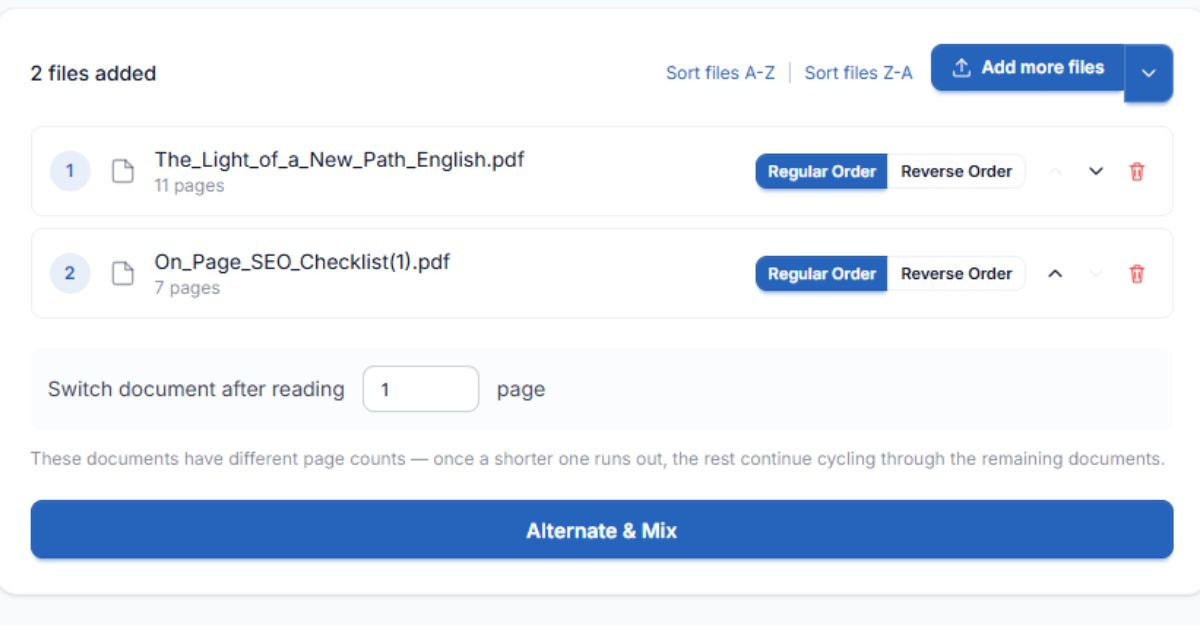
Make sure your files contain the pages you want to merge before uploading. By checking the order of pages beforehand, you will get a better final product.
Step 2: Check Your File Order
You will now be asked to upload two PDF files; once you have done this, verify the order of these two types of documents. The first placed file will give the front page in the alternating process, and that is followed by the second file's front page.
This step is important when the documents have related content. Say, you have two PDFs — the first contains front pages and the second back pages; their order must be correct so that the latter one sits on the front side, forming a proper document.
Step 3: Go for the alternating array.
Find the option which lets you alternate between PDF pages or interleave the documents. It will organize pages of both files sequentially.
This feature eliminates the need to extract, transfer and rearrange individual pages of a PDF file manually. Instead, it offers a simpler method for generating the document you need where pages from two different files must alternate.
Step 4: Process the PDF Files
Start the process as soon as you have the files and arrangement. Which will combine PDF pages alternatingly based on the order.
It produces a single PDF with pages from both uploaded files. Your files will stay more organized as you can treat them all as one document rather than cluttering your space with multiple PDFs.
Step 5: Download your processed PDF
Once processing has finished, take a look at the result if you have a preview or some equivalent via pages. Then download the processed PDF and store it on your device.
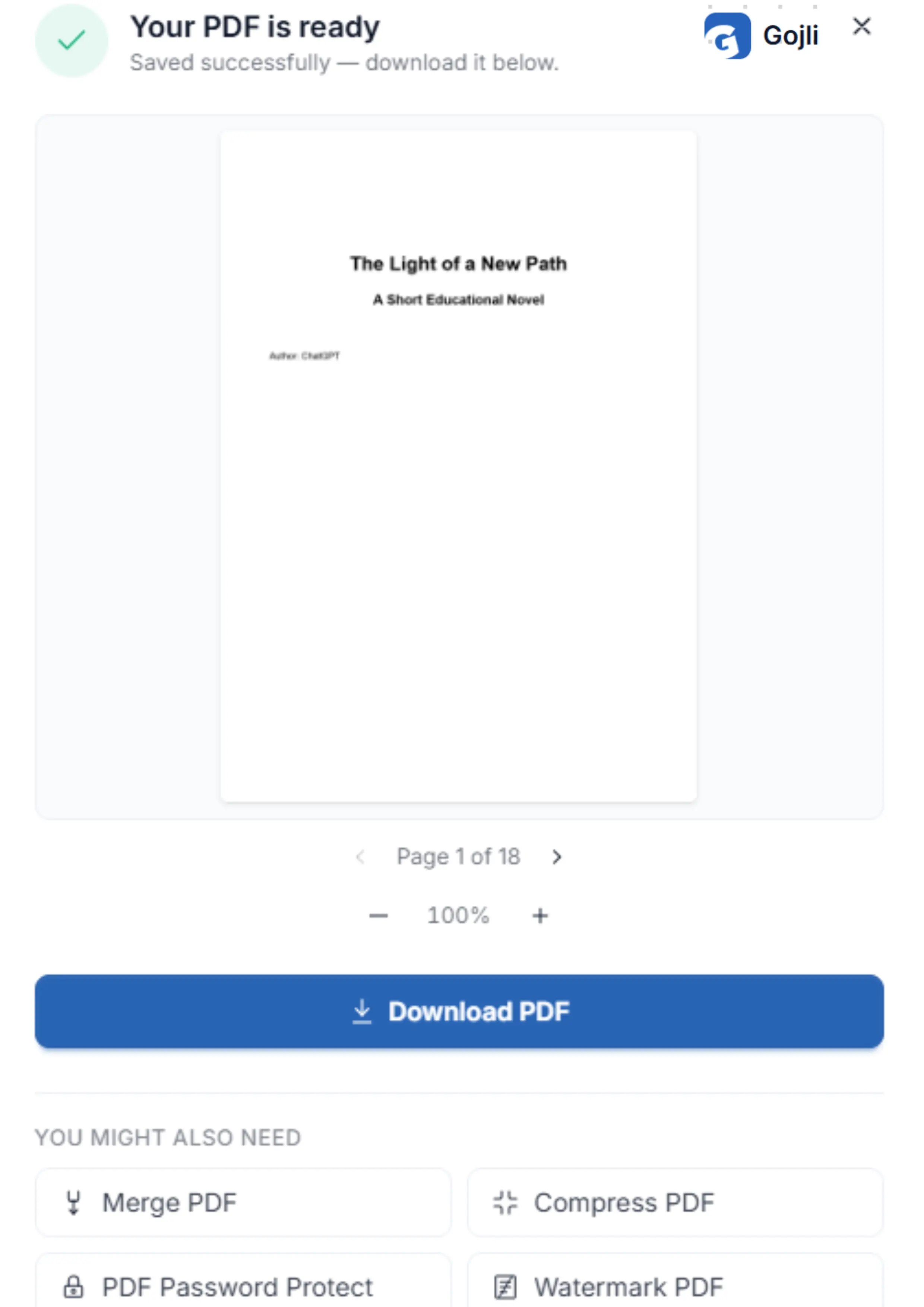
You can use your new file for sharing, printing, storing and even editing it more with tools related to it, such as Merge PDF or Organize.
Main Features of Alternate & Mix
Alternate PDF Pages
This feature itself enables the ability to go through pages from two documents and insert them in an alternate way. This is useful in case pages from two different files are strong, each one is a companion, and they should still comply with the same sequence.
Say you scanned the odd pages in one PDF and then scanned the even pages in another; alternating them is a simple way to properly put the page order.
Mix Two PDF Files
This tool reduces the hassle of stitching various PDF files together manually by uploading them online. Proceed by uploading the two documents and then process these via alternating arrangement.
This offers substantial time savings as opposed to extracting pages and arranging them separately in each PDF editor.
Combine PDF Pages Alternately
Unlike a regular PDF merger that typically sticks one whole document file after another, this option merges pages individually from each file.
This is what makes the tool very useful for:
- Front and back page scans
- Odd- and even-page documents
- Related page sets
- You need to read both documents together
- Reorganised scanned files
- Arrange PDF Pages Efficiently
This process organises pages in a specific way based on the selected file order and alternating help. By doing so, no manual page management is required, and users can arrange pages in a more logical order of flow.
Download the processed PDF.
When the merging is done, you can then download your new PDF document. The end result eliminates the need of storing, sharing, printing or defending in another workflow.
Their Benefits to You and Significant Options
File Order
The order in which you publish your PDF files influences how the finished document starts. If the first page needs to be taken from one file in particular, make sure that file is on top.
User problem: Wrong page starts in final document
Do: Check the file order before processing and put the right PDF first.
Alternating Page Sequence
The primary functionality of the tool is switching. It reads a page from one PDF and then a page from the next.
Problem faced by the user: They had a need to merge two related PDFs one page at a time.
Solution: interleaving (This option will automatically create an alternating sequence.)
How Alternate & Mix Assists Users
Alternate & Mix makes in a few clicks a task that would otherwise require manual editing of the PDFs. Instead of having to extract pages, go into an editor, and then move all the pages one by one, users can use an automated alternating process to combine documents.
The tool can help you:
- Saves time when there are multiple related PDFs
- Reduce manual page rearrangement
- Once you have multiple PDFs, put them together in a sequence that is useful to you
- Organise scanned documents more efficiently
- Combine two previous documents into one
- Create PDF files for distribution/printing
If you happen to be a long-term user of copying pages within scanned documents, reports, assignments or page-based files, then the option for interleaving PDF pages can result in an easier document management experience.
Tips for Better Results
Prior to working with the tool, ensure that both PDFs are internally ordered. Pages are swapped in the order they already have, whether that be correctly or incorrectly.
Look into which PDF must produce the first web page as properly. If you are merging front and back scans or combining odd and even pages, you want to start with the correct file so that the resulting sequence is readable.
If you received a different number of pages in two files, check the final processed document after download to see whether the page sequence satisfied your needs.
Now go ahead and download your final result.
Once you finish the Alternate & Mix procedure, download and save the processed PDF on your computer. Open the file and make sure that alternating pages appear as they should.
And with that you can share the PDF, print it (with the EasySheets tool), store it in an archive, merge more SPDFs and continue working on all these documents with several tools like Merge PDF or Organize. Which allows for two different documents to become an organised file by alternating the original PDF pages with less effort.