 Gojli
GojliOrganize—Easily Rearrange PDF Pages Online
What Is Organize and How Does It Work?
Organize is an online PDF Page Organizer to allow anyone to rearrange, reorder, and manage pages inside a PDF. If you want to move a mislaid page in addition to rearranging the order of a report or restructuring an output, this specific tool resolves the issue with messy/change incorrectly ordered PDF files. Organize is for students, professionals, and businesses alike. You can organize PDF pages. Online with it without the need of installing software, thus making it available anytime, anywhere.
How Does Organize Work?
The tool follows a very straightforward process, which involves the steps mentioned below:
- Uploading PDF files—the first scene where you can select it or drag your PDF into this tool.
- Preview PDF Pages—Receive immediate access to browsing preview pages in the PDF viewer as thumbnails.
- Drag and Drop Pages—Rearrange pages by dragging them into the desired order.
- Reorder or Move Pages—Put pages in different places to fit the way you want them.
- Save and Download—After editing, you can directly process your file and drag the new PDF into your computer.
We also have this step-by-step workflow so that even the utmost novice can navigate their documents without getting confused.
How To Organize Online — A Step-by-Step Guide
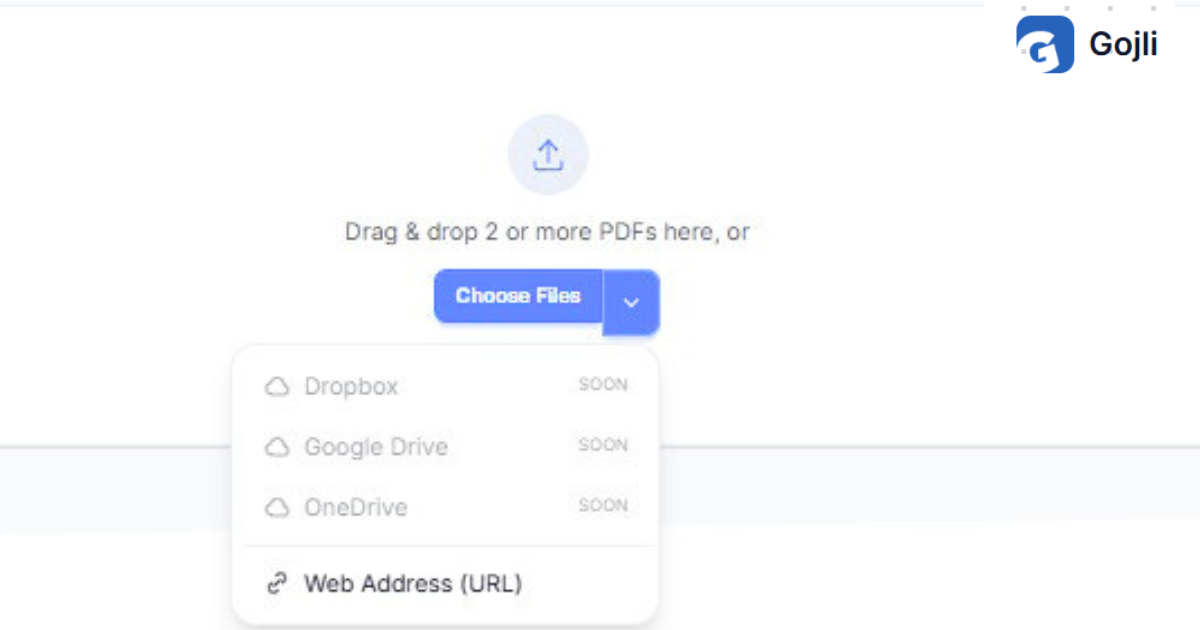
Step 1: Upload Your PDF File
Click the upload button or drag and drop your file into this organize tool. Multiple files can be added if needed.
Step 2: Preview and Identify Pages
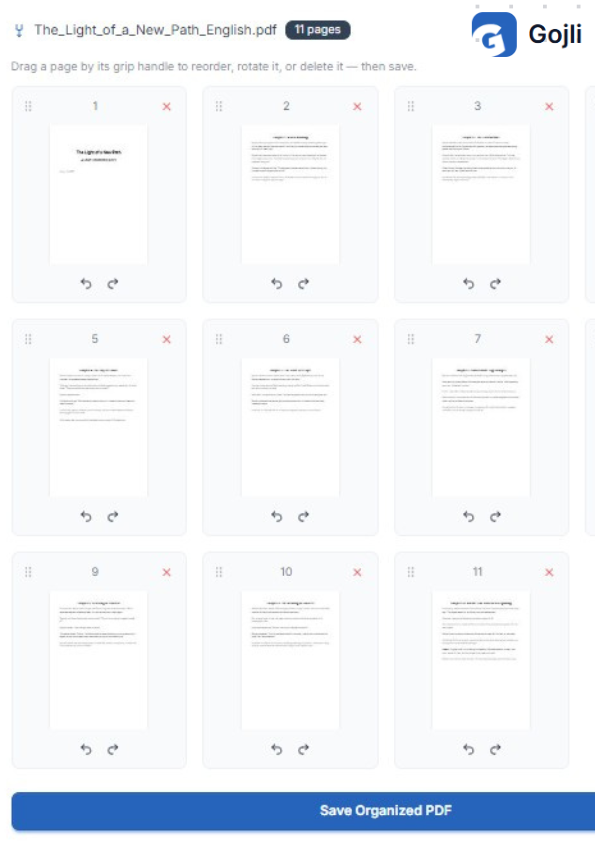
It's a tool that shows you all the pages as thumbnails. You can easily identify pages that are missed anywhere or duplicates in the above list.
Step 3: Rearrange Pages
Drag & drop pages into the right order. To illustrate, if page 5 belongs first, simply drag it to the top.
Step 4: Apply Settings
Select to keep all pages or dispose of any extra pages. It is useful if you want to trim reports or presentations.
Step 5: Save and Download
Now simply click on the “Organize” to have it prepared. Your new PDF is ready to download and take straight to eBay in a matter of seconds.
Key Features of Organize
Upload PDF Files
Provides user with single or bulk PDF file upload This comes in handy for report mergers and document reorganization.
Preview PDF Pages
Shows a preview of all pages as thumbnails, allowing users to visually center the order before saving
Drag and Drop PDF Pages
Easiest feature—drag pages and reorder! You can—without installing complicated editing software.
Reorder and Move Pages
Great for fixing misordered pages, such as in academic papers, contracts, or a manual.
Remove Unwanted Pages
Save time by deleting unnecessary pages right in the tool instead of editing it manually.
Key Options & How to Use Them
Rearrange PDF Pages Online
- What it does: Allows you to reorder pages.
- Why it works: Corrects mistakes in documents or presentations.
- Usage: Drag pages in the right order
- Use Cases: Allows to instantly reorder the chapters in their out-of-order thesis
Move PDF Pages
- This is what it does: Move pages around on nodes.
- What Is It Useful for: Restructuring documents to flow better.
- How to use: Choose a page you wish to reposition and drag it over to the desired position.
- Misplaced Appendix: The solutappendix and the appendix to the end of the document.
How Organize Helps Users
- Speeds up the process, so there is no need to go back and edit it manually.
- Reduces errors in professional documents.
- To facilitate workflow for students, teachers, and businesses.
- Eases the complexity of PDF management irrespective of technical skills.
- Search keywords and get instant results without installing any software.
If you need to merge together separate docs, make use of Merge PDF beforehand and then sort the resulting pages. Another workaround could be the Alternate & Mix tool, which can be useful for documents that need pages from separate files to intermingle in a specific order.
Tips for Better Results
Prepare files—make sure that your PDF is ready to go before uploading it
Get your input in order—find the pages that need to be rearranged.
Preview – Make sure to verify the order before hitting save.
Eliminate duplicates—part ways with pointless pages to streamline the record.
Download and Review—Always proofread the final document before sending it over.
Download/save/use your final result.
Once processed, just hit Download, and it will be saved in the order you configured your PDF document. You can then:
- Store it on your device.
- Upload via e-mail or cloud service.
- Featuring it in presentations, reports, or submissions
Organize makes working with PDF documents a breeze, keeping your files organized and professional so you can always be ready to go!