 Gojli
GojliHow to Merge PDF Files Online A Simple Step-by-Step Guide

Working with multiple PDF files can quickly become frustrating. You might have a report in one file, supporting documents in another, and a few additional pages saved separately. Instead of sending several files or opening them one by one, you can merge them into a single PDF.
The good news is that you don't need complicated software to do it. An online PDF merger can combine multiple files into one document in just a few steps. In this guide, we'll walk through how to merge PDF files online, how to arrange the pages correctly, and a few things to check before downloading the final document.
What Does It Mean to Merge PDF Files?
Merging PDFs means combining two or more PDF documents into one PDF file.
example :
- Report.pdf
- Invoice.pdf
- Attachments.pdf
After merging them, you could have:
- Complete-Document.pdf
With the contents of all three files in one place. This can be especially useful when you're preparing documents for work, school, applications, contracts, or sharing with someone else.
Why Merge Multiple PDFs?
There are plenty of situations where combining PDFs can save time.
1. Keep documents organized
Instead of managing several separate files, you can keep related documents together in one PDF.
2. Easier sharing
Sending one file is often more convenient than sending five or ten separate attachments.
3. Prepare documents for applications
Some applications ask you to upload supporting documents as a single PDF. Merging the files beforehand makes this much easier.
4. Create a complete report
You can combine a cover page, main report, charts, references, and appendices into one document.
5. Simplify archiving
Keeping related documents together can make them easier to find later.
How to Merge PDF Files Online
The process is usually straightforward. Here's an example using Gojli's Merge PDF tool.
Step 1: Open the Merge PDF Tool
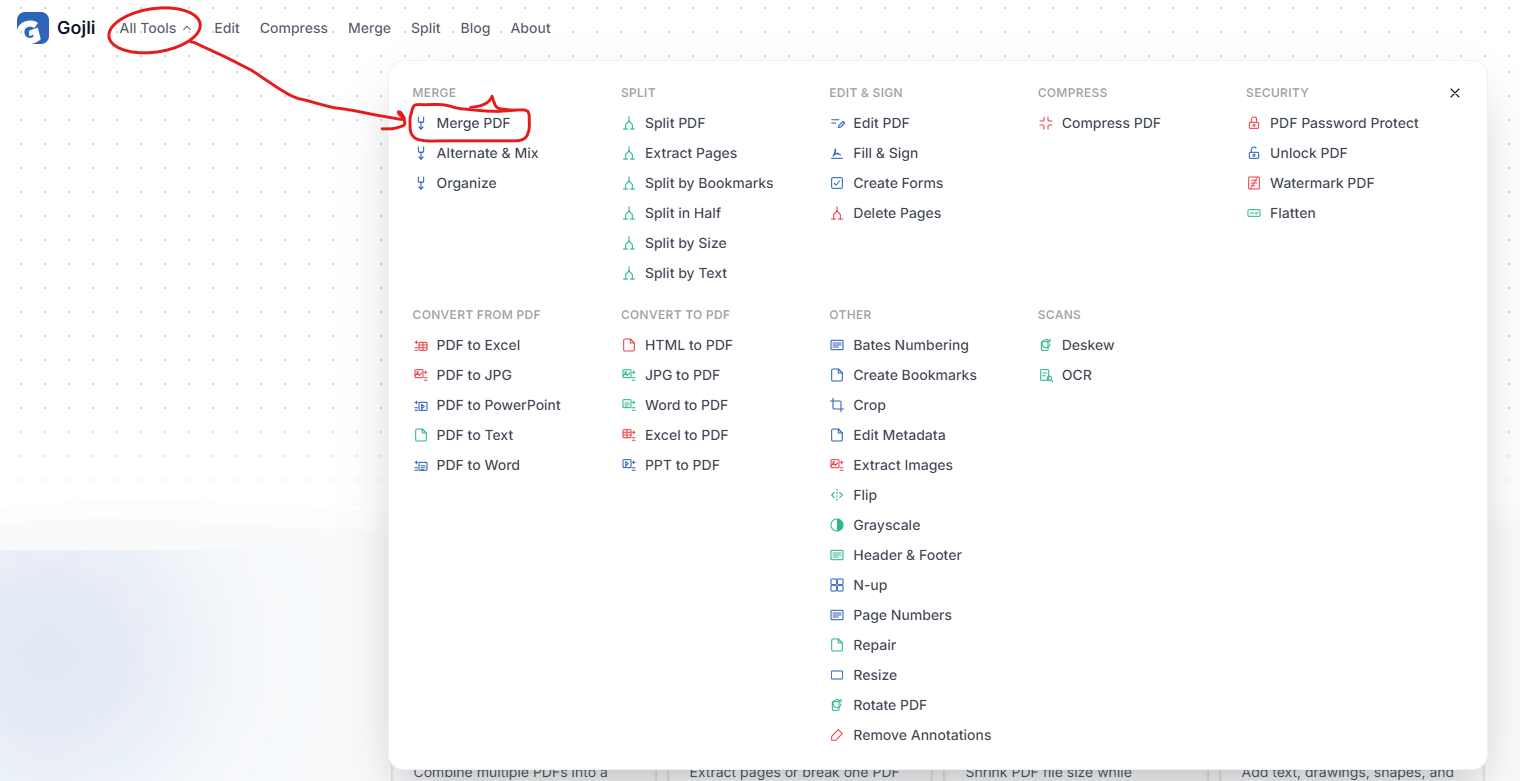
Step 2 : You should see an option to upload or select your PDF files

Tip: Before uploading, keep the files you want to combine in an easy-to-find folder.
Step 3 : Upload Your PDF Files
Select the PDF documents you want to combine.
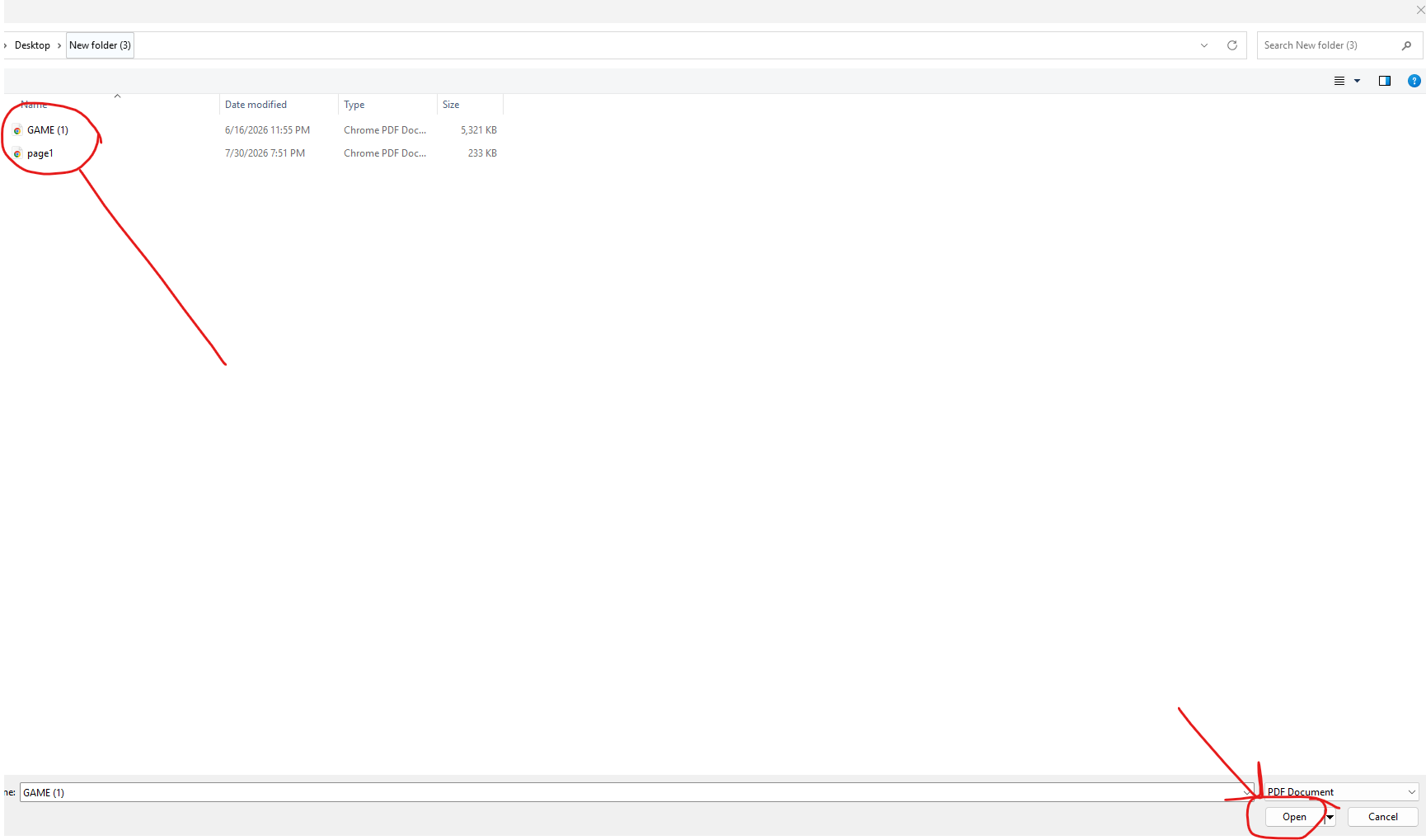
Depending on the tool, you can select multiple files at once or add them individually.
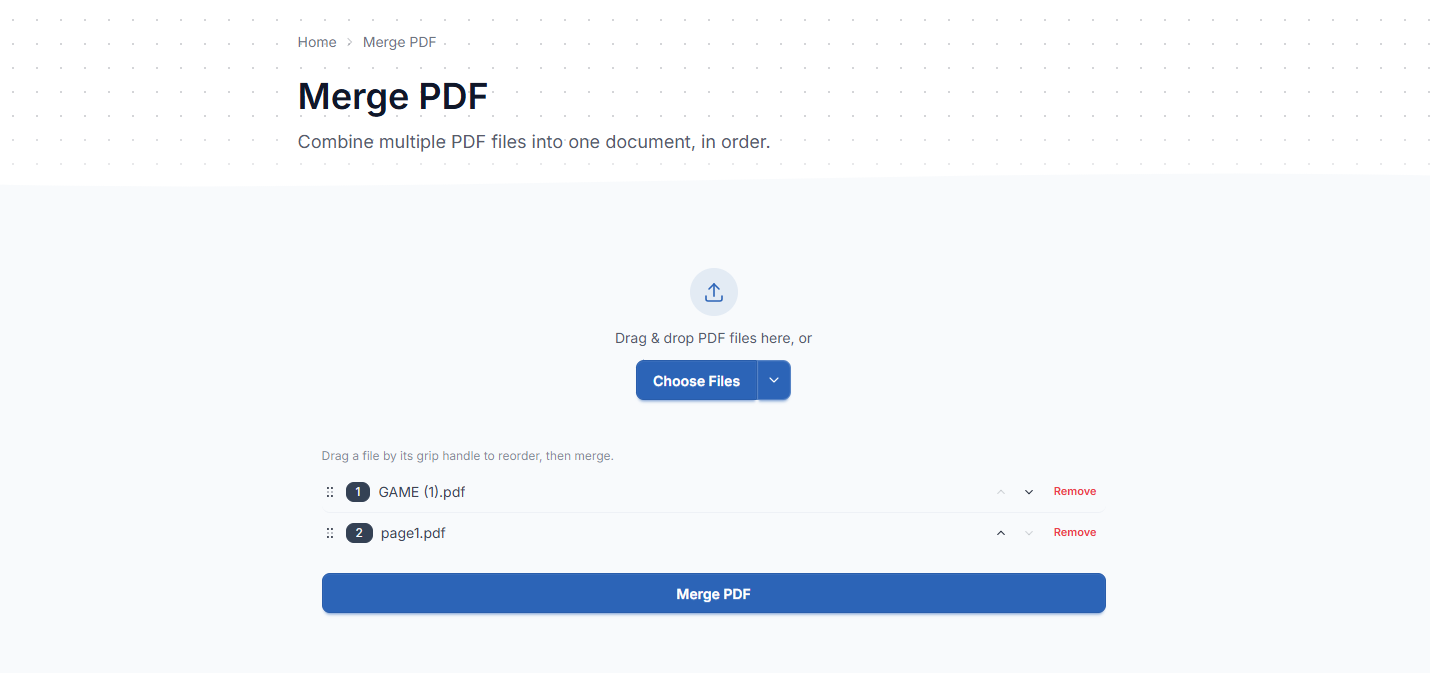
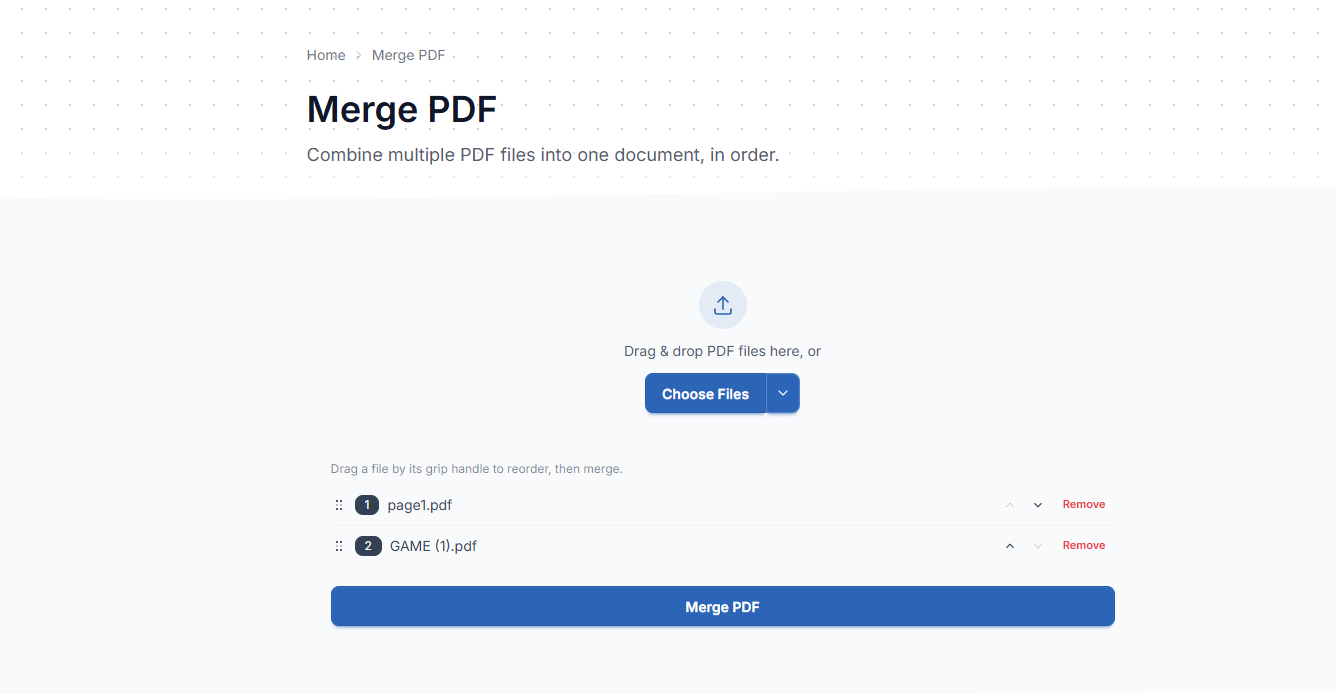
Step 4: Arrange the Files in the Correct Order
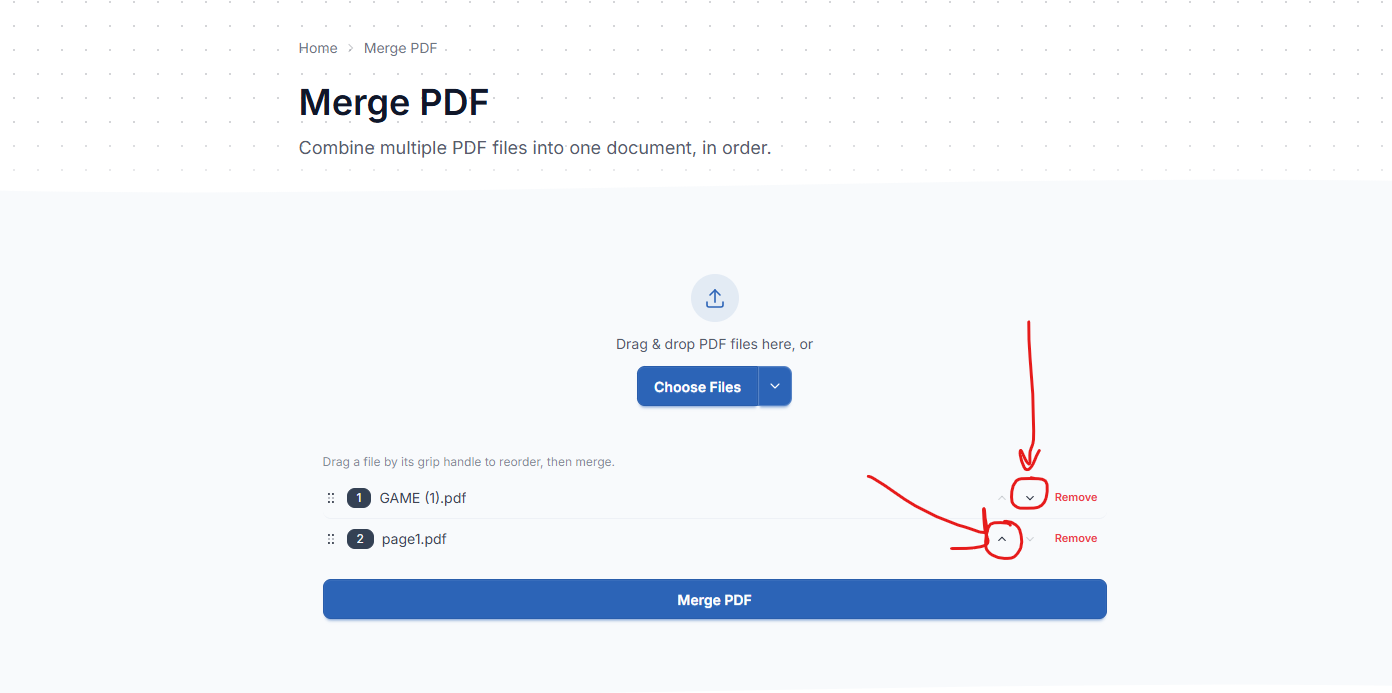
The order of the PDFs determines the order of the pages in your final document.
For example:
- Cover.pdf
- Report.pdf
- Financial-Report.pdf
- Appendix.pdf
If the tool allows drag-and-drop, simply move the files into the order you want.
Always check the order before merging.
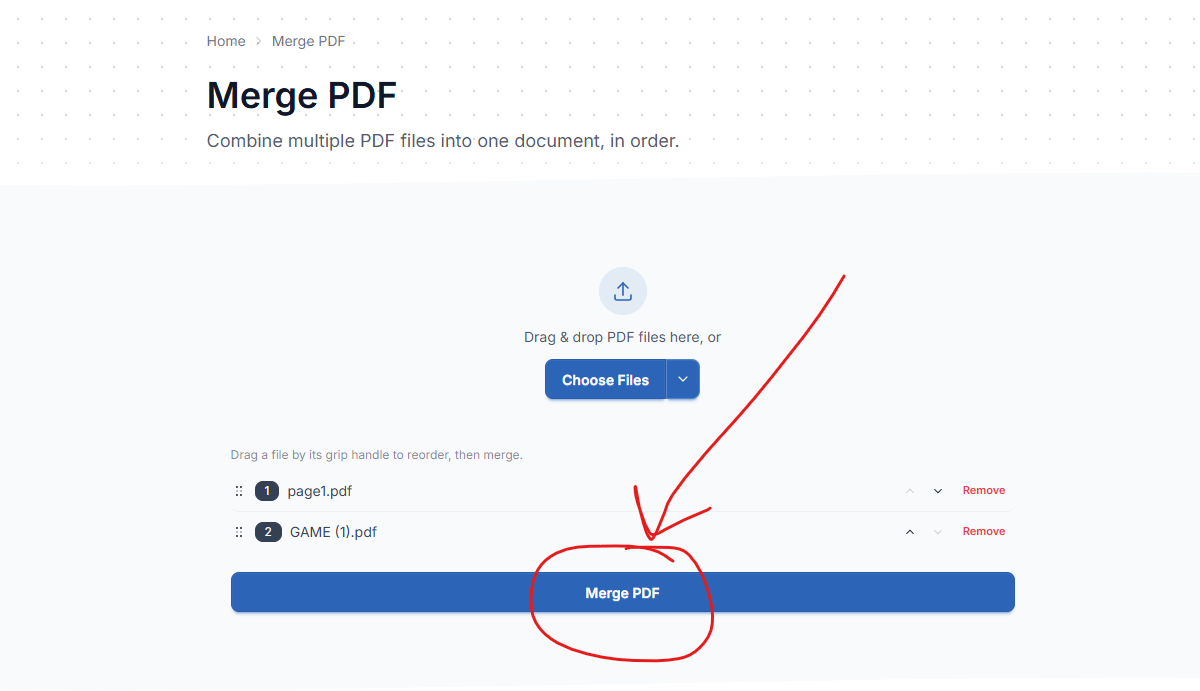
Step 5 : Merge the PDFs
Once you've uploaded and arranged your files,
click: Merge PDF
- The tool will process the documents and combine them into a single PDF.
- The processing time can vary depending on the number and size of the files
.
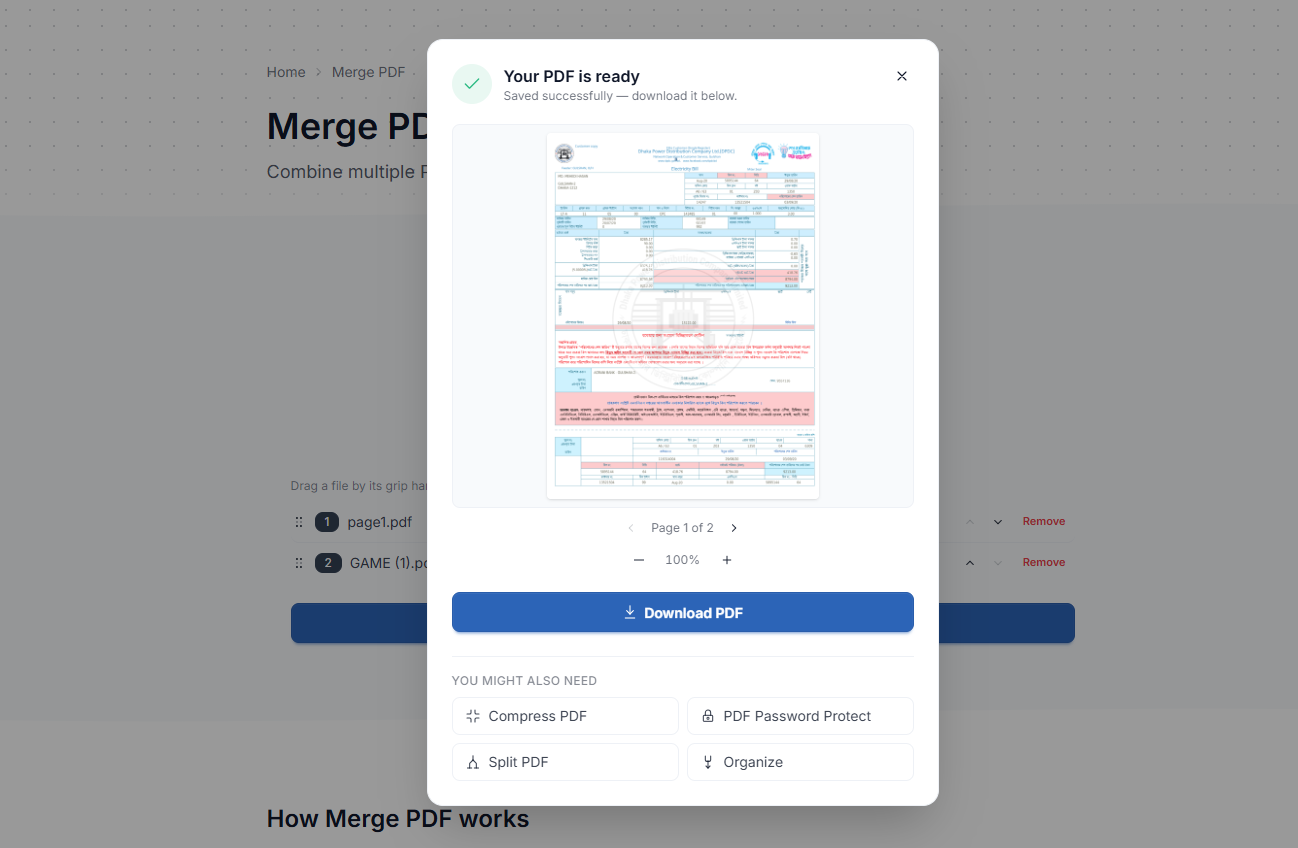
Step 6: Download the Merged PDF
After the merging process is complete, download the new PDF.
You can then open the file and quickly check that:
- All pages are present
- The page order is correct
- Text looks normal
- Images are displayed properly
- No pages are missing
That's it. Your separate PDF files are now combined into one document.
Can I Merge More Than Two PDFs?
Yes. Most PDF merger tools allow you to combine multiple documents.
For example, you might merge:
- PDF 1
- PDF 2
- PDF 3
- PDF 4
- PDF 5
- PDF 6
One PDF document
However, if you're combining a large number of files, it's a good idea to organize and rename them first. This makes it easier to avoid accidentally placing a document in the wrong position.
Can I Change the Order After Uploading?
Many PDF merging tools allow you to rearrange files before processing. If the tool supports drag-and-drop, you can simply move the files into the desired order.
For example:
Before:
- Invoice
- Cover
- Report
After:
- Cover
- Report
- Invoice
The final PDF will follow the new order.
Does Merging PDFs Reduce Quality?
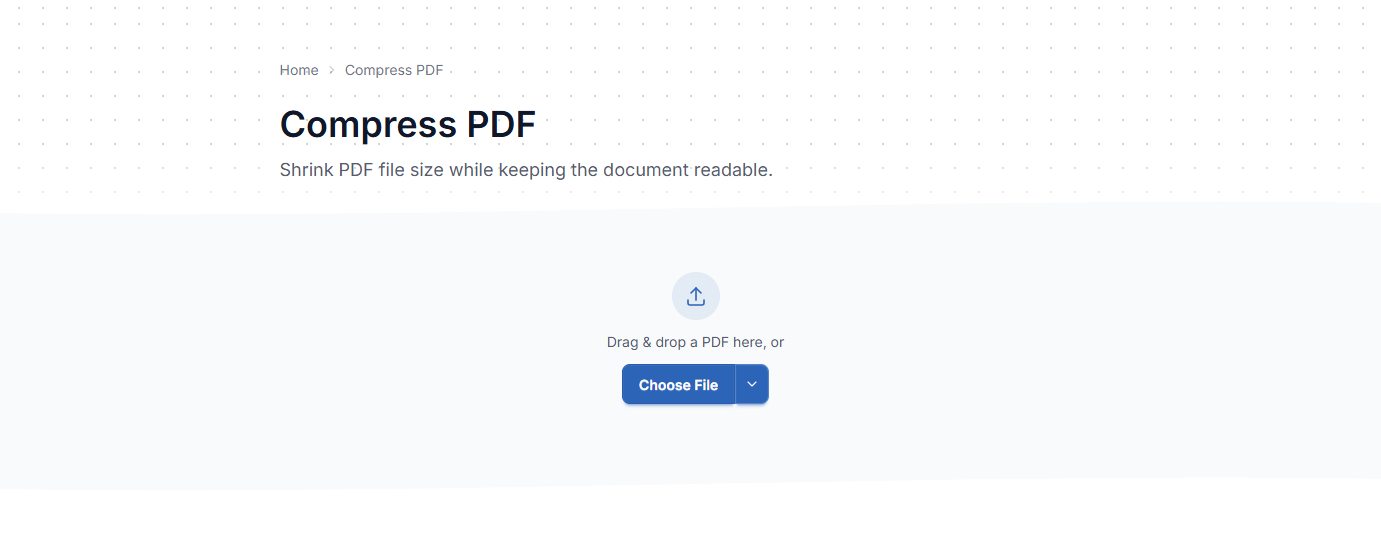
Normally, simply combining PDF files does not require you to significantly reduce the quality of the original cuments. However, the exact result depends on how the PDF tool processes the files. If the original PDFs contain high esolution images, scanned pages, or other large elements, the final file can still be relatively large. If your merged PDF is too large, you can use a PDF compression tool afterward to reduce the file size.
Merge PDF Files with Gojli
Need to combine several PDF documents into one file?
Try Gojli's Merge PDF tool to upload your documents, arrange them in the order you want, and create a single PDF.
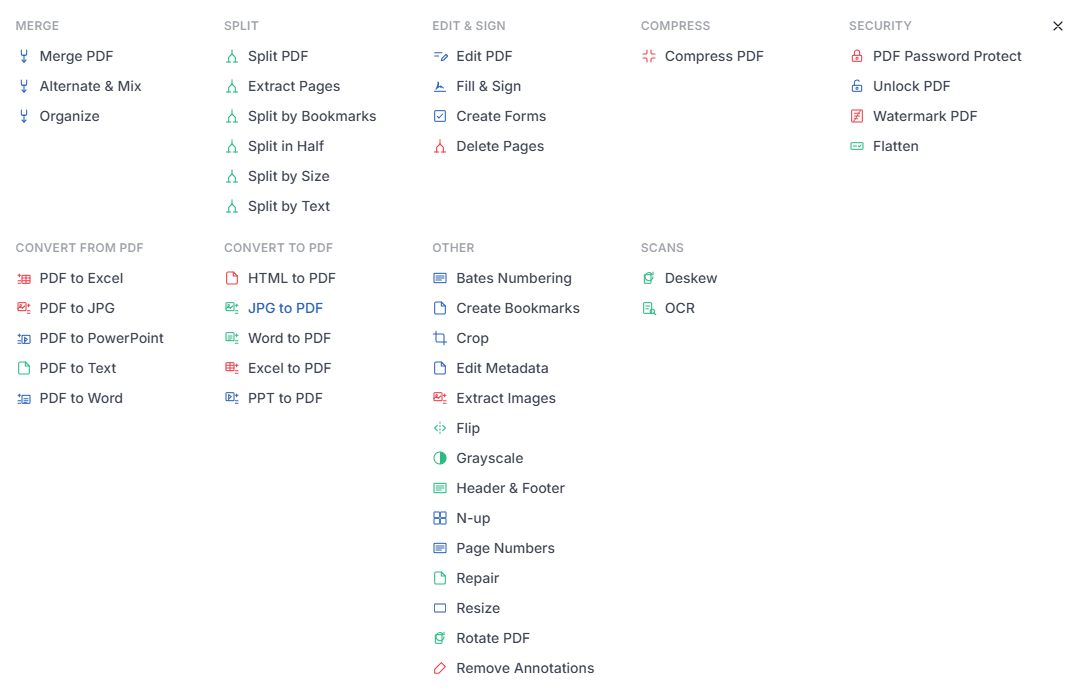
After merging, you can also use Gojli's other PDF tools to compress, split, rotate, edit, or organize your document.
Final Thoughts
Merging PDF files doesn't have to be complicated. Whether you're combining work documents, reports, invoices, scanned pages, or application materials, an online PDF merger can save you from managing multiple files separately.
The basic process is simple:
- Upload → Arrange → Merge → Download → Review
Just remember to check the file order and review the final PDF before sharing it.